Connect a Workspace and Machine
Everything Helix Code does starts from a workspace. Reading files, running commands, and editing code all depend on Helix Code knowing which machine and which project directory it should work in.
This tutorial covers the essential first step: connect Helix Code to a local folder, remote server, or VM workspace, and make sure the connection is actually usable.
See the Full Flow First
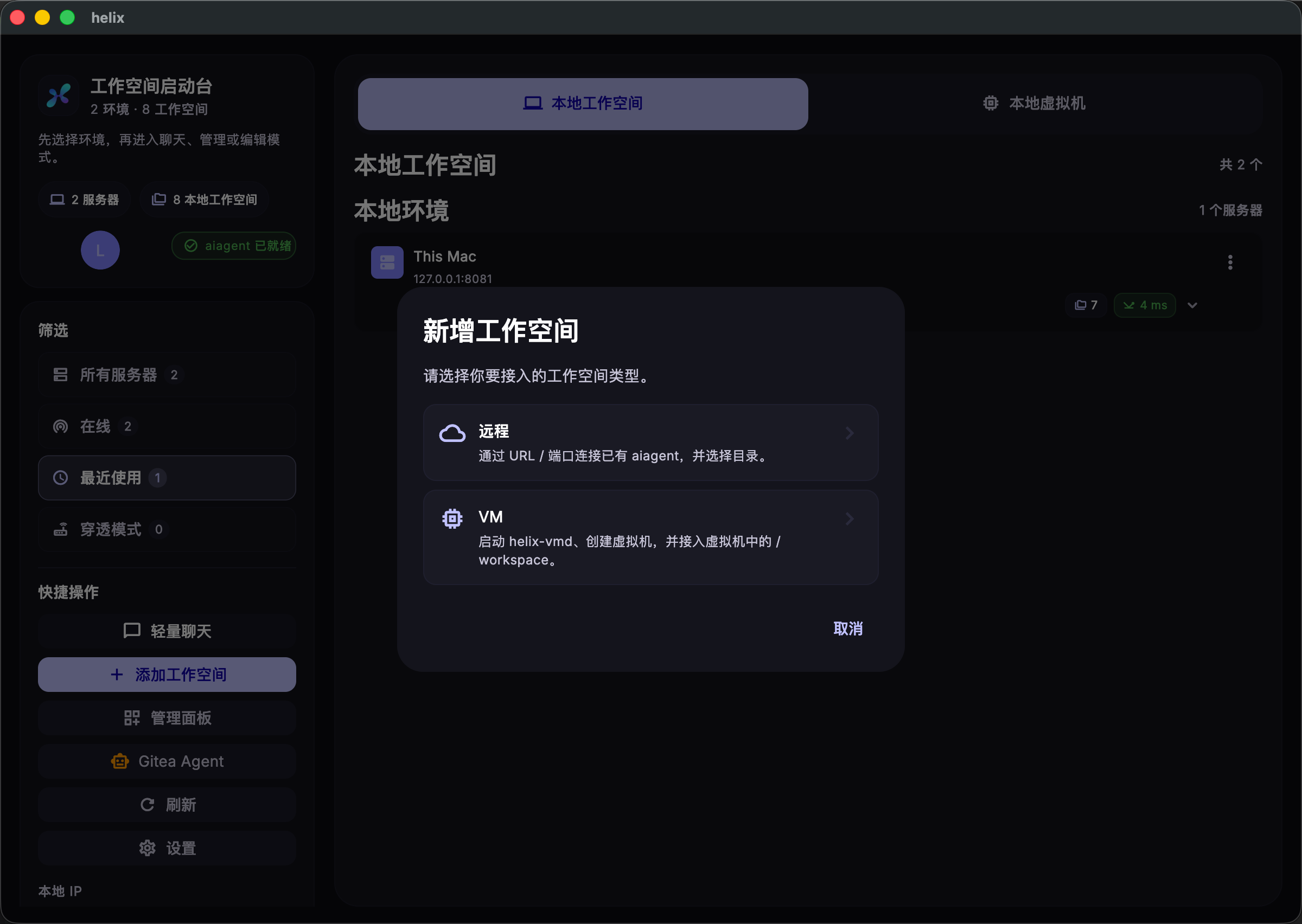
The workspace launchpad is on the left; the add-workspace entry and connection panel are on the right. Let's walk through the flow in order.
Step 1: Open the Add Workspace Entry
Click Add Workspace in the quick actions on the left.
This opens the workspace launchpad and shows the modal for creating or connecting a workspace.
Step 2: Choose a Workspace Type
In the modal, choose the workspace type first. The common options are:
- Local workspace: the project is on this computer
- Remote workspace: the project is on an SSH server
- VM workspace: the project runs inside a Helix Code-managed virtual machine
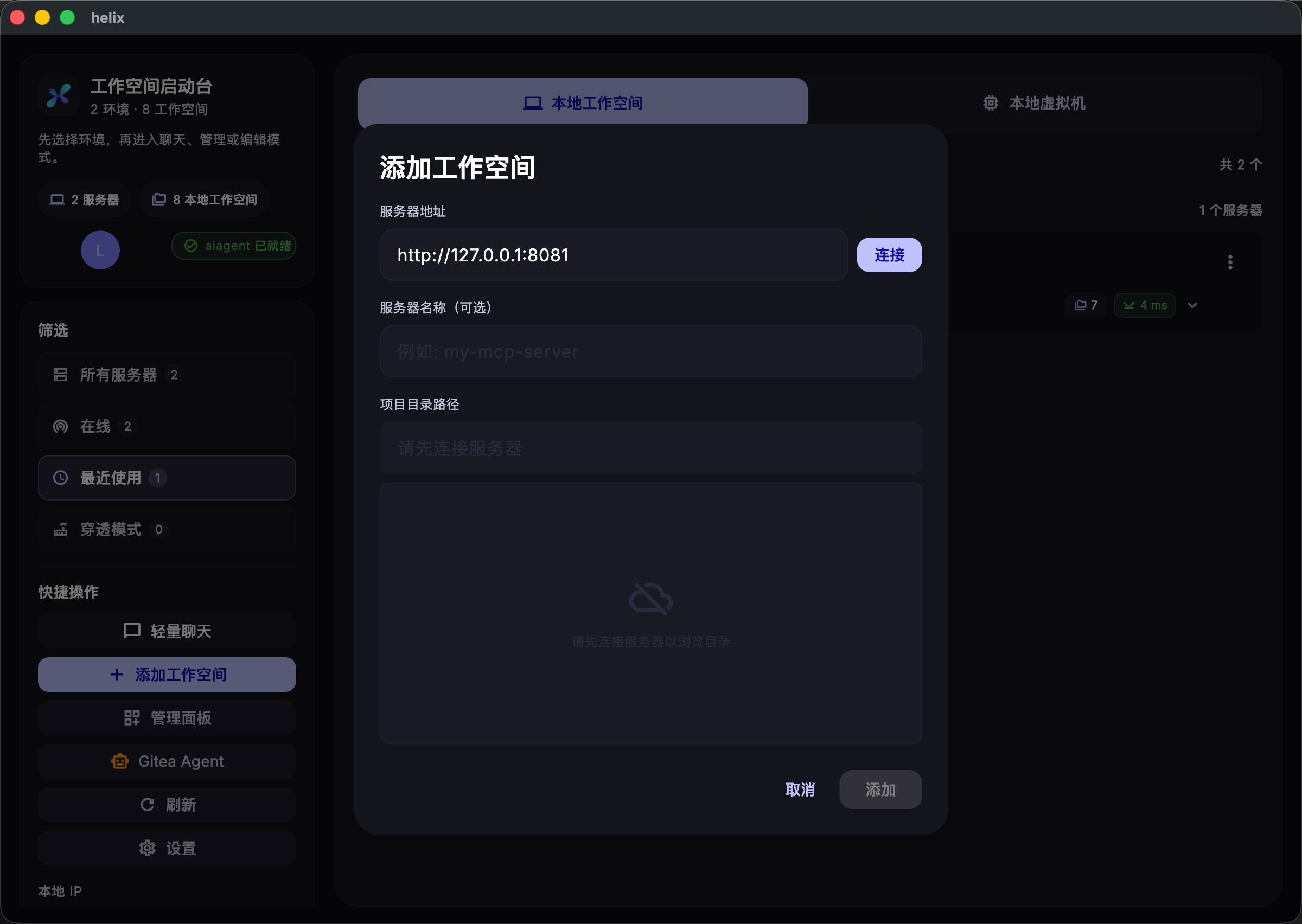
For a remote workspace, enter the server address and finish connecting before choosing the project directory.
Step 3: Confirm the Machine Is Connected
Once the connection succeeds, the server card switches to the connected state and the project directory appears in the same modal.
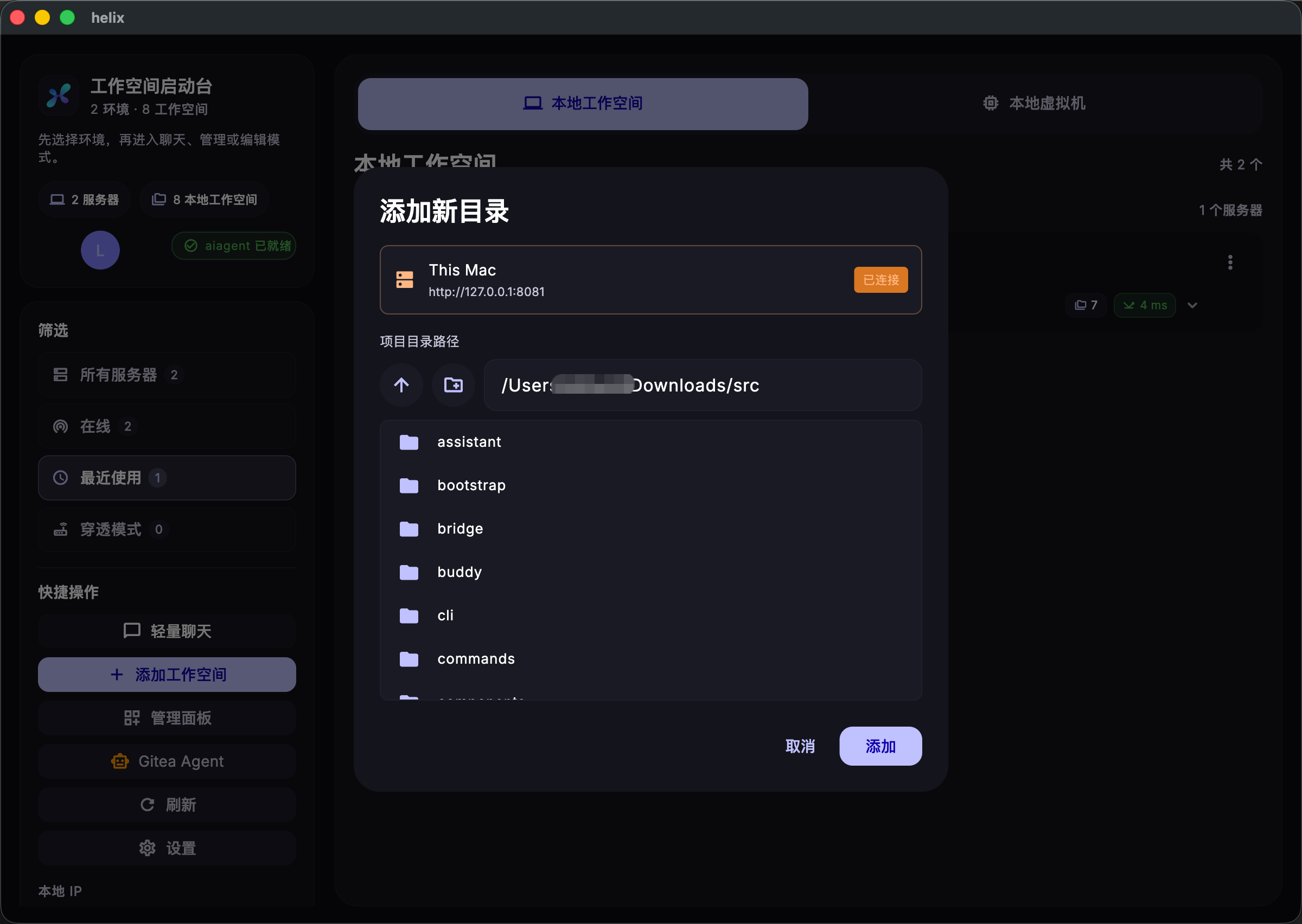
Don't just check that the modal is open. Confirm two things:
- The machine state shows connected
- The target project directory is visible or selectable
Step 4: Verify the Workspace in the List
Back in the workspace list, you should see the current workspace, connection mode, and recently used projects.
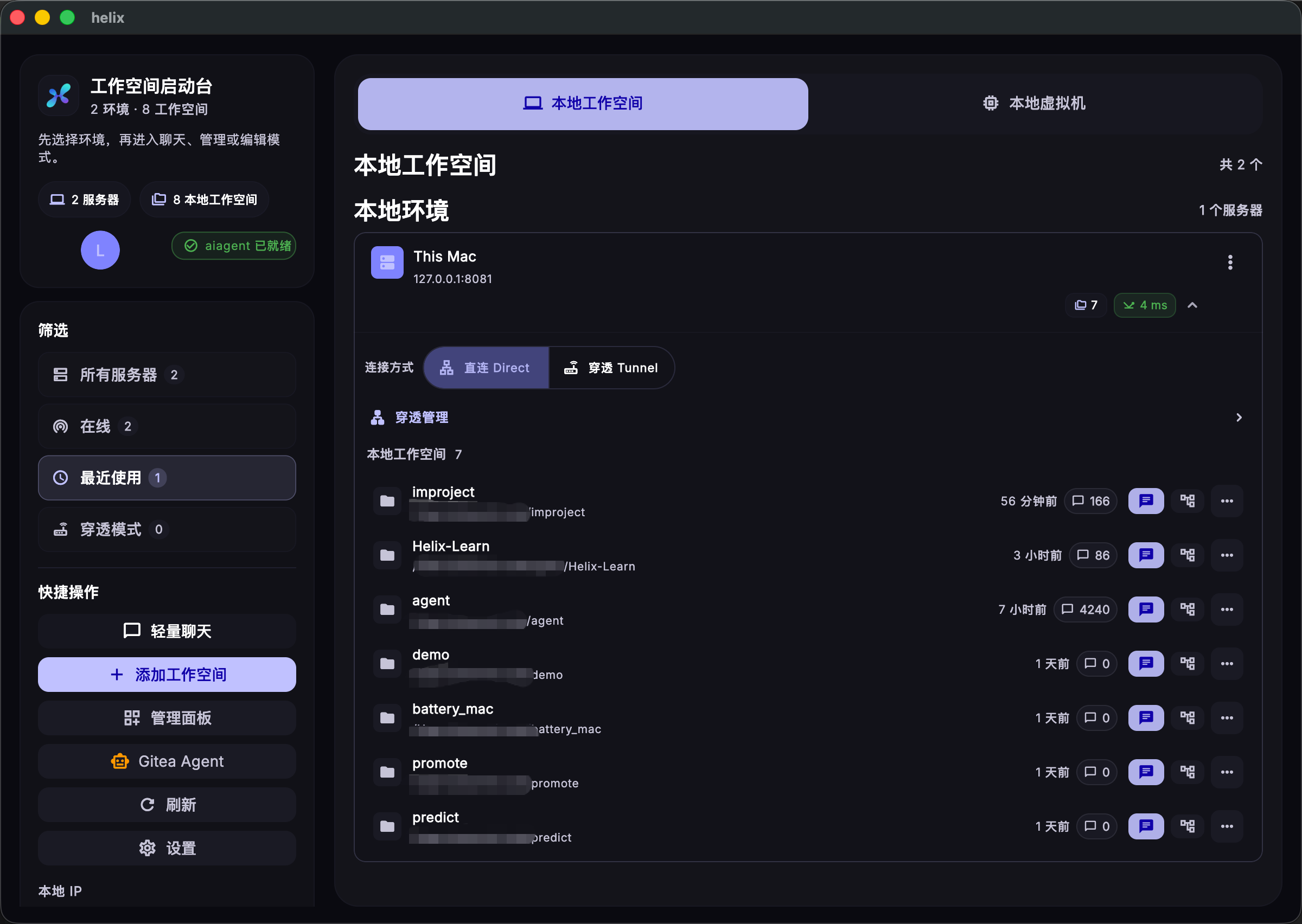
If the workspace appears here and can be opened again, the setup is ready.
What You Should Have Now
After this tutorial, you should have a usable Helix Code workspace:
- Helix Code knows which project directory to operate on
- The AI can read files in that directory
- The terminal opens in the workspace automatically
- Model setup, conversations, and Manager tasks now have a real project target
Next Step
Continue with Get to Know the Helix Code Interface and learn where the main controls live.