Use Manager Mode
When a task gets large, a single Chat session may require too much manual steering: breaking the work down, reminding the AI of steps, and checking progress. Manager mode is designed for handing Helix Code a bigger goal so it can plan first, then run sub-tasks in parallel.
What Manager Mode Is For
A simple way to think about it:
- Chat mode: you work step by step with one AI partner
- Manager mode: you give a goal to an AI team, and the Manager decomposes and coordinates the work
Manager mode is useful when:
- The task touches multiple files, modules, or directories
- The work can be split into relatively independent steps
- You want the AI to plan and execute with less step-by-step guidance
- You need visibility into several sub-tasks at once
It is not always the best choice. For a concept question, a one-line change, or explanation of a single function, Chat mode is faster.
Switch to Manager Mode
Click the Manager tab at the top of the left panel.
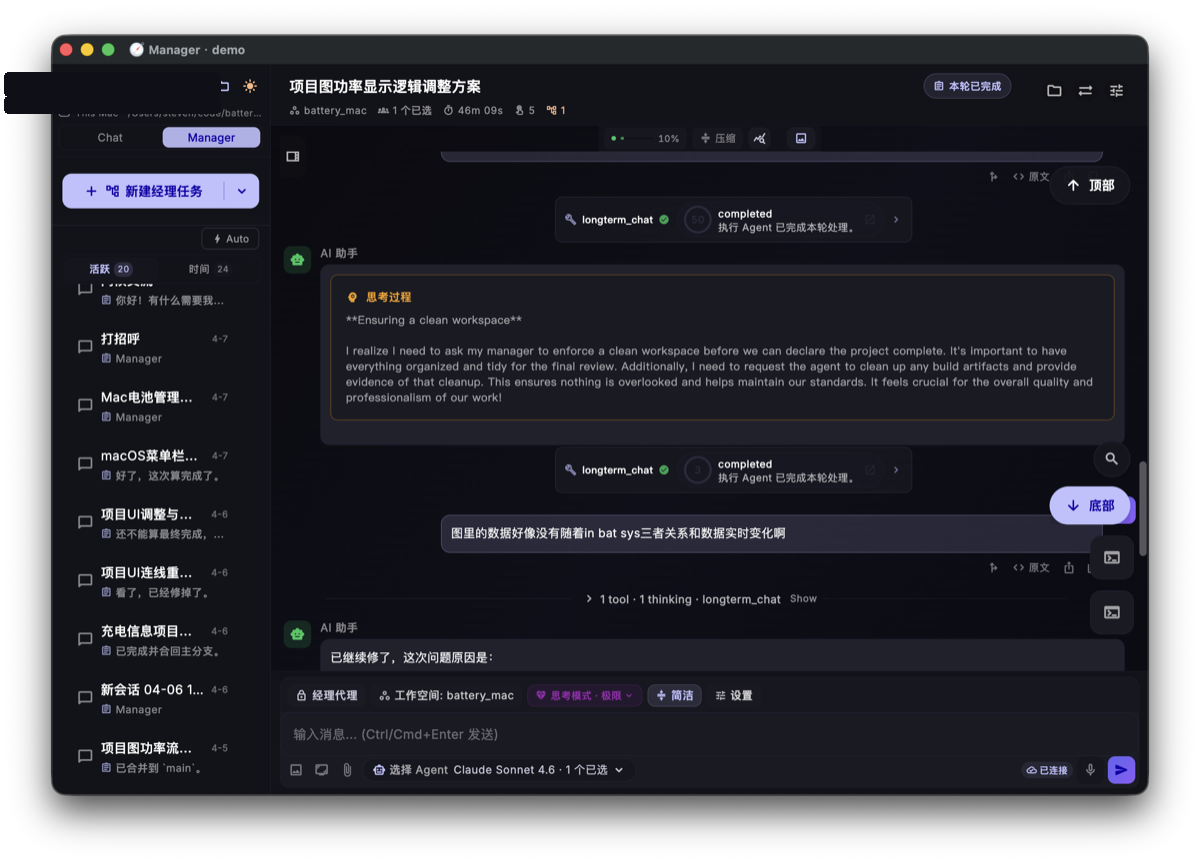
The interface still looks familiar, but the AI's behavior changes from sequential answering to planning and dispatching.
Start a Manager Task
In Manager mode, your prompt can describe the real objective. For example:
Add unit tests for all API handlers in this project. Cover both the happy path and error cases.
Or:
Replace every
console.logcall in this project with structured logging usingpino, and make sure the tests pass.
When Manager receives the task, it usually goes through these stages:
- Analyze: understand the goal, scope, and risk
- Plan: break the work into executable sub-tasks
- Dispatch: assign sub-tasks to separate agents
- Execute in parallel: run multiple sub-tasks at the same time
- Summarize: report completion state, changed files, and remaining risks in the main session
Add constraints such as "don't change the database schema," "run existing tests first," or "summarize every modified file at the end." Clear constraints reduce the chance of sub-tasks drifting off target.
Watch Sub-Tasks Run in Parallel
The main value of Manager mode is visibility into each sub-task instead of waiting for a single final answer.
Sub-Task Panel
Each sub-task appears as its own card, usually showing:
- The sub-task goal
- Current status: in progress, completed, or failed
- Tool call history
- Errors or blockers that need attention
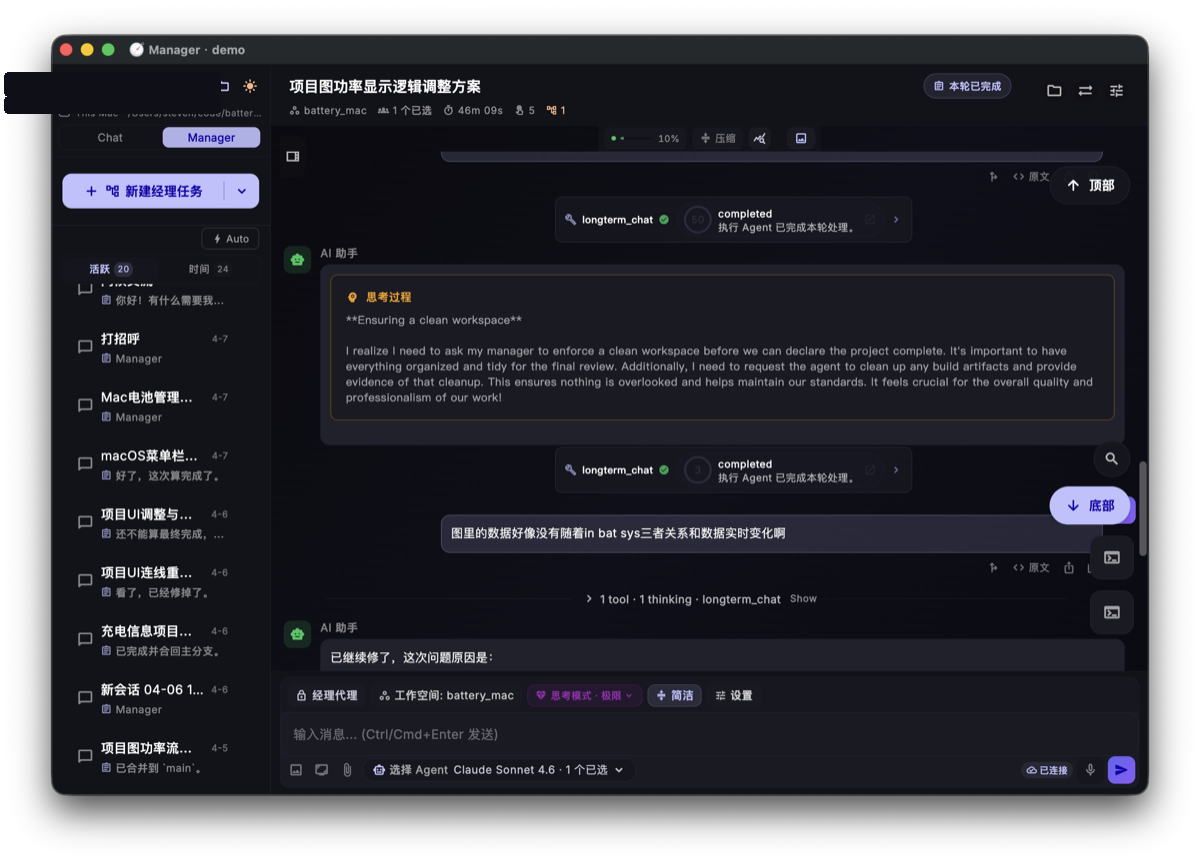
Click any sub-task to inspect its execution details. If a sub-task is clearly off track, return to the main task and clarify or stop it.
Session Counter Updates
After switching to Manager mode, the left-side session counters update:
- Main sessions: the Manager parent session
- Sub-tasks: the number of spawned execution tasks
Review and Accept the Result
After all sub-tasks finish, Manager summarizes in the main session:
- Which sub-tasks completed successfully
- Which files were changed
- Which checks were run
- Whether anything failed, was skipped, or still needs manual confirmation
Manager mode improves throughput, but it doesn't remove the need to review. For core logic, migrations, permissions, security, or release flows, always inspect the diff and test results.
Chat vs Manager at a Glance
| Chat Mode | Manager Mode | |
|---|---|---|
| Interaction | Back-and-forth | Give a goal; AI decomposes it |
| Execution | Sequential | Parallel |
| Best for | Quick edits, questions, local explanations | Multi-file changes, batch work, refactors, tests |
| Control | You steer each step | Manager plans and coordinates |
| Review | Check the current response | Check summary + sub-task details + diff |
What You Should Be Able to Do
After this tutorial, you should know when Manager is appropriate and how to write a Manager task with both a goal and constraints.
Next Step
With Manager in your toolkit, continue to Terminal & File Browser. These tools help you inspect the project, run commands, and verify AI changes inside Helix Code.